
In Helm CONNECT 1.38, we're introducing a redesigned notification system that gives you more control over how you receive and manage your notifications. We've also made it easier for your crew to start forms, given dispatchers more detail on their Live diagrams, and helped your payroll teams choose the right earning codes. Here's a closer look.
A New Way to Manage Notifications
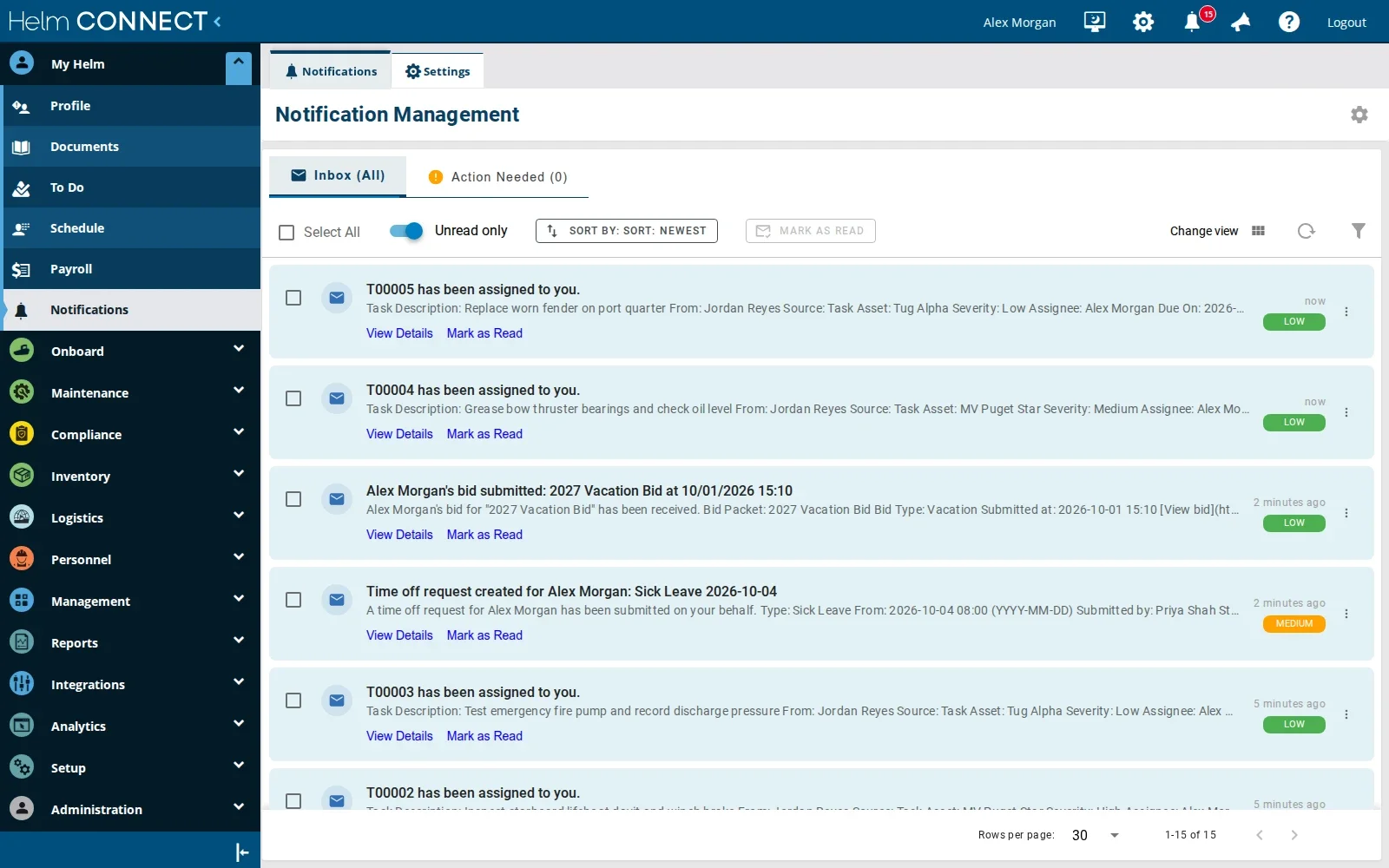
The new notification system gives everyone one place to see and manage their notifications. A new notification bell shows how many unread notifications you have, new notifications pop up as cards in the corner of your screen, and the new My Helm > Notifications tab keeps all your in-app notifications in one inbox. Your notifications are saved in Helm CONNECT, so they follow you to any browser or device, including your phone.
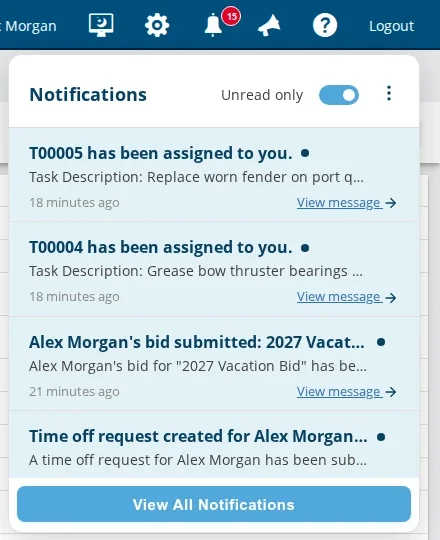
Each person chooses how they get each type of notification: by email, in app, or by text message. You can also set your own active hours, and Helm CONNECT removes duplicate notifications before they're sent. Text messages are now available to every customer. Administrators turn them on in the notification groups that need them, and each person turns them on for themselves. Previously, they were only available for crew change notifications, through your own Twilio integration.
Administrators manage notifications on the new Setup > Notifications tabs:
Notification groups: Choose who receives a notification, using roles, positions, and position groups, and apply it to many notification types and divisions at once.
Styles: Choose which details appear in each email, in-app notification, and text message, and add your own header and footer.
Critical notifications: Make sure important notifications reach people, even if they've turned off that delivery method.
System Log: See every notification that was sent.
When you upgrade, most of your existing notifications move to the new notification system automatically. Crew change and certification expiry notifications keep working as they do today.
What's New in Helm CONNECT Compliance?
Start a Form by Scanning a QR Code
You can now create a QR code for a form template and post it where the work happens. Crew scan it and a new response to that form opens, ready to fill out. They don't need to know the form's name or search the library for it.

Where it helps:
Incident reports: Post the code in the engine room, on deck, or at the gangway. When something happens, crew scan and start the report on the spot, while the details are fresh.
Near misses: Near misses go unreported when logging one takes too long. A code on the bulkhead makes it one scan, so more of them get captured before they turn into incidents.
Visitor sign-in: Post it at the gangway or the office door.
And as we talked about at Helm Conference, QR codes are coming to inspections, maintenance, and inventory soon as part of our work to bring all of these onto one shared template.
What's New in Helm CONNECT Logistics?
See Load Status and Assets to Scale on Your Live Diagrams
The Live diagram now shows more of the information from the Tow diagram, to help dispatchers and fleet managers plan the movement of attached assets. Each attached asset shows its load status, how many of its cargo holds are loaded, and which commodities are aboard. A red triangle also marks attached assets with open high-severity tasks, so you can spot a problem without opening each one.
You can now set an area size for each location diagram. The Live diagram then draws assets and attached assets that have recorded dimensions to scale, with a grid that shows the real distance each square covers, so you can see whether a tow or tier will fit.
We've also made the colors on both the Tow and Live diagrams easier to tell apart for color-blind users.
We're currently turning this feature on only for interested customers. Please reach out to your account manager if you have any questions or would like to see a demo.
What's New in Helm CONNECT Personnel?
Show Each Person Only the Earning Codes That Apply to Them
If you have several payroll groups, such as separate groups for different vessel types, unions, or employing companies, you probably have earning codes that only make sense for one of them. You can now limit an earning code to one or more payroll groups.
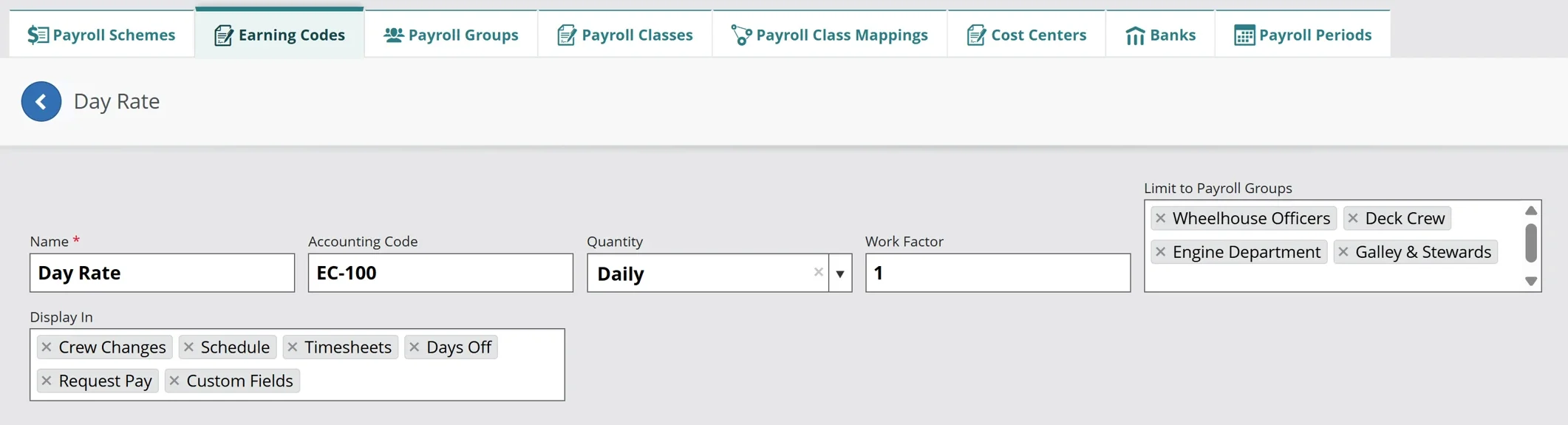
When you add pay lines, adjust pay, create payroll requests, or override earning codes on a crew change, the list only shows the earning codes available to that person's payroll group. Payroll administrators have fewer wrong codes to correct at the end of each pay period, and crew creating their own payroll requests no longer have to scroll past codes that don't apply to them. Your existing earning codes keep working as they do today until you limit them to a payroll group.
What's New in Helm CONNECT Analytics?
Your Pro dashboards get some useful new views in 1.38. Here are a few of the highlights.
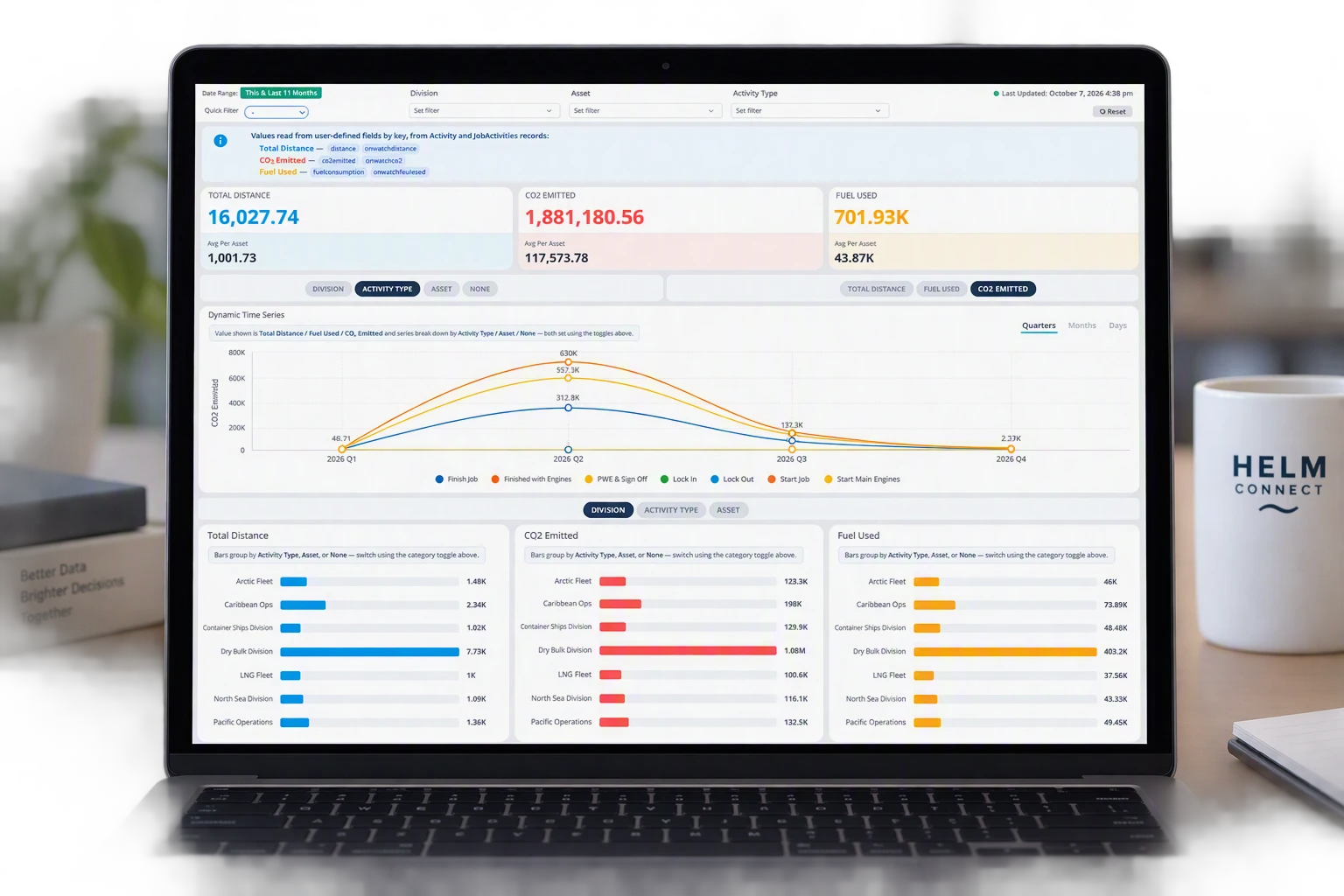
A new Carbon and Fuel Analysis dashboard in Maintenance Pro shows how far your fleet travels, how much fuel it uses, and how much CO₂ it produces, all on one page. You can compare totals and per-asset averages by division, asset, or activity type, and see how they change by quarter, month, or day.
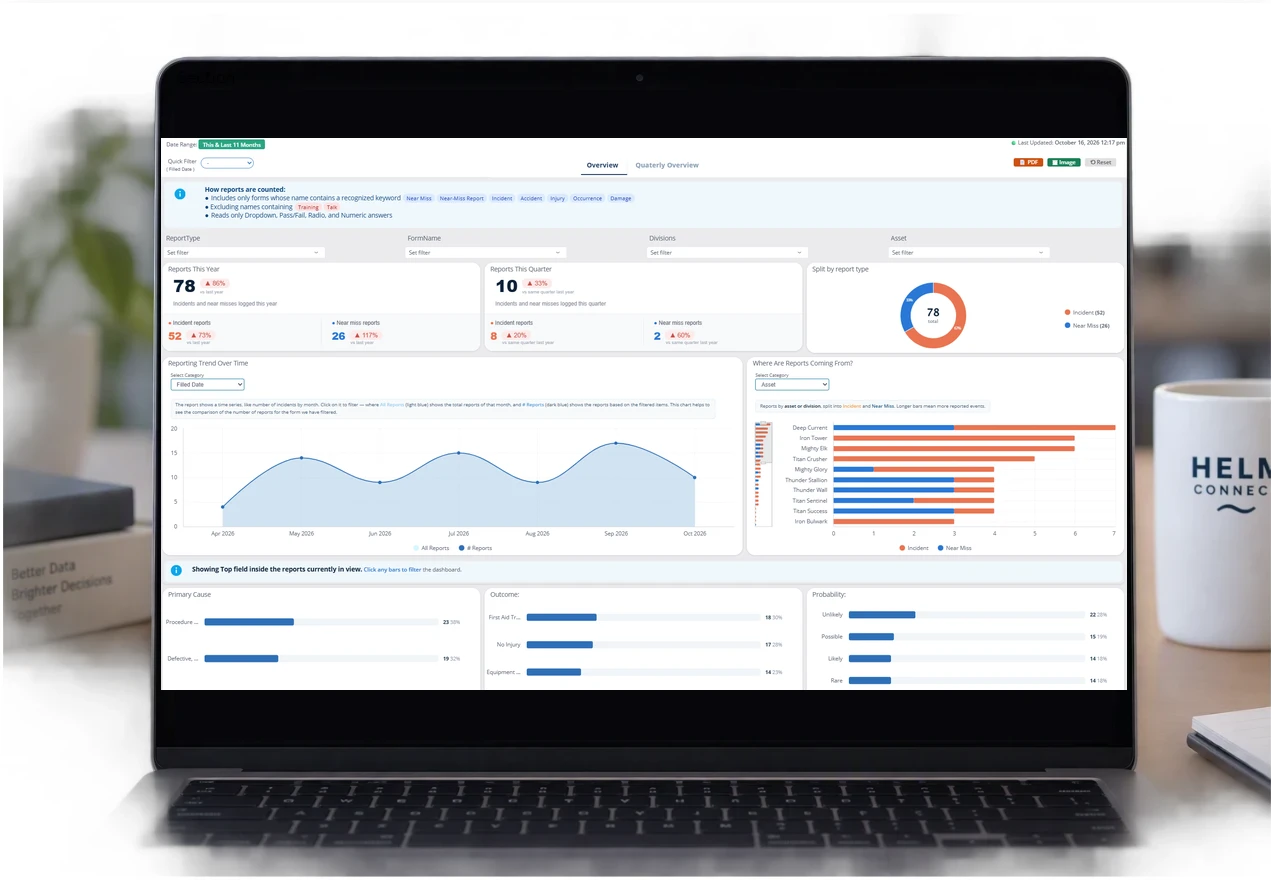
A new Incidents & Near Misses dashboard (Beta) in Compliance Pro turns your incident and near-miss report forms into a safety overview. You can see how many events were logged, whether reporting is trending up or down, and where reports are coming from.
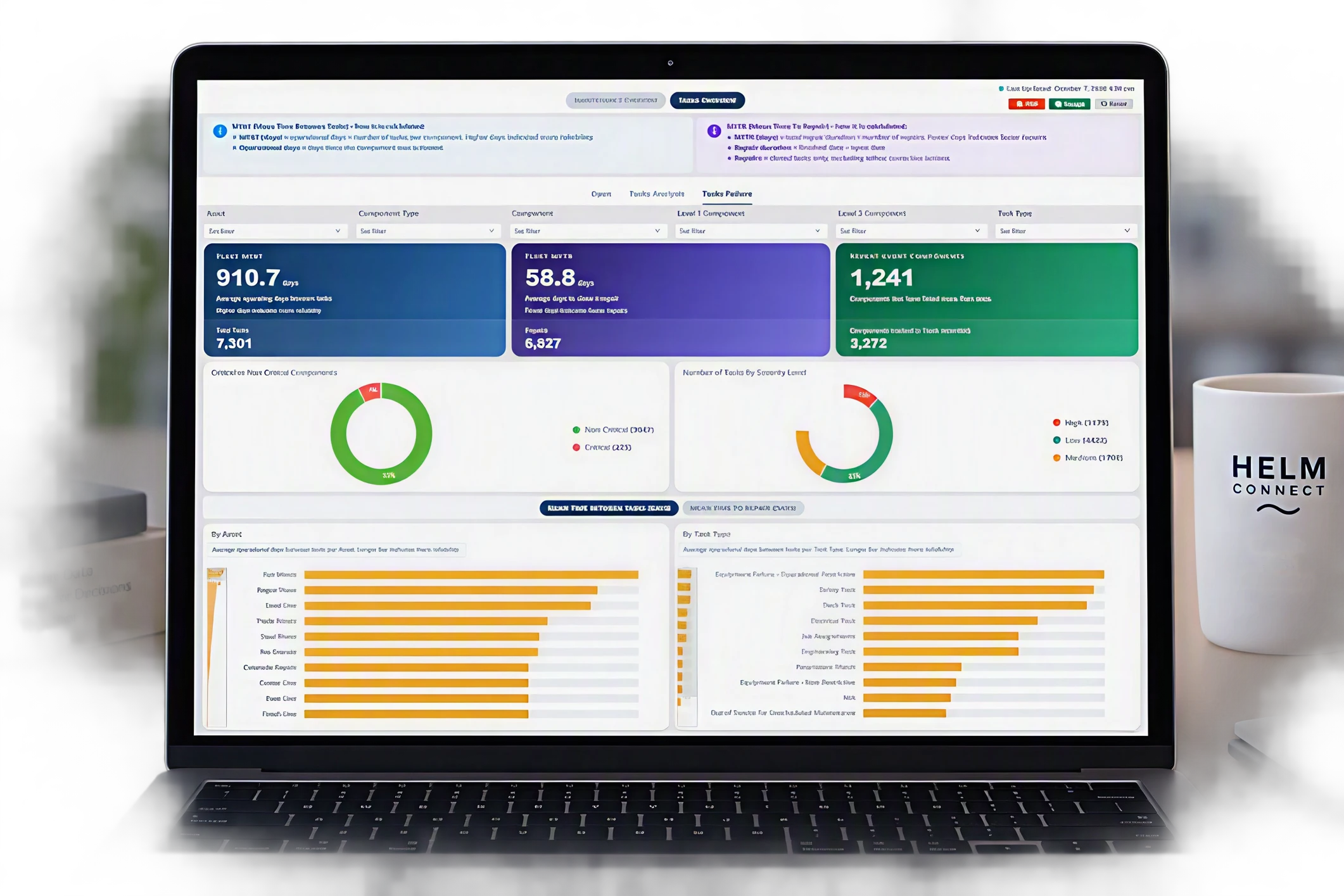
A new Tasks Failure tab on the Tasks Pro dashboard shows how reliably your maintenance work holds up. It helps you find which assets and components fail most often, how long repairs take, and which components keep failing.
Did You Miss These Updates to Version 1.37?
We don't wait for our big releases to add value to Helm CONNECT. If you haven't checked our release notes lately, you may have missed some of the features we've added since Version 1.37 came out. Here they are, by product line.
Maintenance
More requisition filters let you filter requisitions by more fields, such as dates, vendors, parts, and custom fields, from the new More Filters button on the Requisitions and History tabs. You can also sort the History tab by any column, including custom field columns.
Logistics
Trip types by division let you hide a trip type from the divisions that don't use it, so the Trip Type list on a job order shows only the trip types that apply to its division.
More control over the Req. Resource field lets you choose whether the field is shown, hidden, or required on jobs, for each trip type and division.
Descriptions on activities let you record details such as which piece of equipment is being maintained. Previously, only events had a Description field.
Attachments, notes, and a change log on manual transactions keep the supporting information with the transaction.
Personnel
A setting to hide planned crew changes keeps them out of the Logbook's Upcoming Work section, so your upcoming jobs are easier to find if your team doesn't act on planned crew changes.
For the details of each feature and a list of the fixes we've released since Version 1.37 came out, see the Updates section of the Version 1.37: Release Notes.
These are just some of the highlights coming in Helm CONNECT 1.38. For all the details, be sure to read the Version 1.38: Release Notes, and don't forget to subscribe to our newsletter to stay up to date with the latest Helm news.